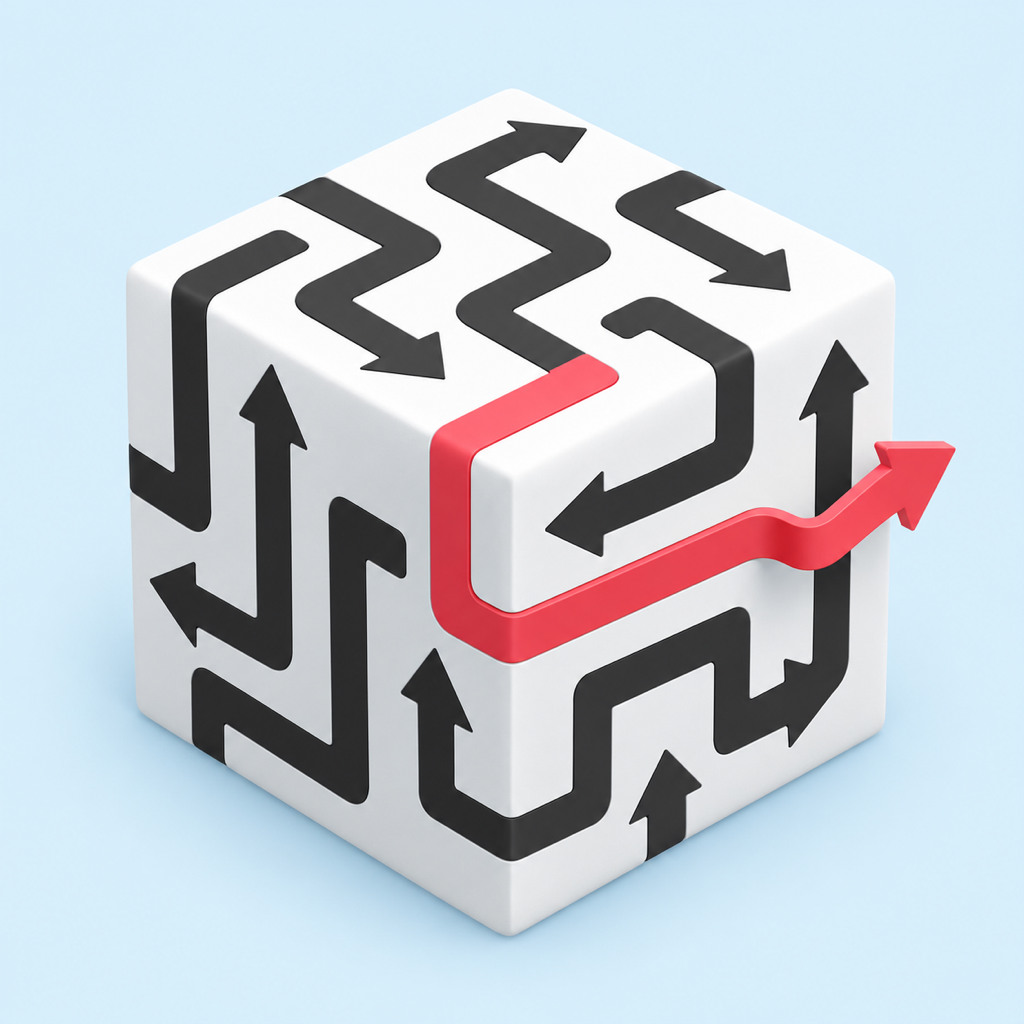
 CubePath
How to play
Tap an arrow with a clear path ahead. Its head pulls the whole arrow along, even around edges. Rotate the shape to clear every face.
Good to know
Rotate and zoom
Rotate the shape with one finger or by dragging with a mouse. Pinch to zoom on iPhone and iPad, or use your Mac trackpad. Only the shape grows. On Watch, turn the Digital Crown to rotate; swipe or use the controls to change the tilt.
Points, colors and shapes
Each shape has 30 levels of increasing difficulty. Solve levels, earn up to three stars and unlock colors and shapes. Unlocks never spend your points. Each level keeps your best score; replaying only awards the improvement. Hints and blocked moves reduce the bonus, not points already earned.
Where is my progress saved?
Progress and unlocks are stored separately on each device. They do not sync between iPhone, iPad, Watch and Mac. Switching shapes preserves each campaign. Keep the app and your device backups if you want to retain your progress.
An arrow won’t move
The path ahead of its tip must be clear all the way to the edge. An arrow from an adjacent face can also block it. Rotate the shape and use a hint in the info menu if needed. A brief red highlight and shake indicate a blocked move; haptic feedback depends on your device.
Reset the view or your progress
Reset view only resets rotation and zoom. Restart level starts the current round again. Delete progress in the info menu’s privacy section removes this device’s saved games, points and unlocks after confirmation. It does not delete data on other devices or existing operating-system backups.